PV Winzone Login Problems: Can't Sign In or Forgot Password Fix
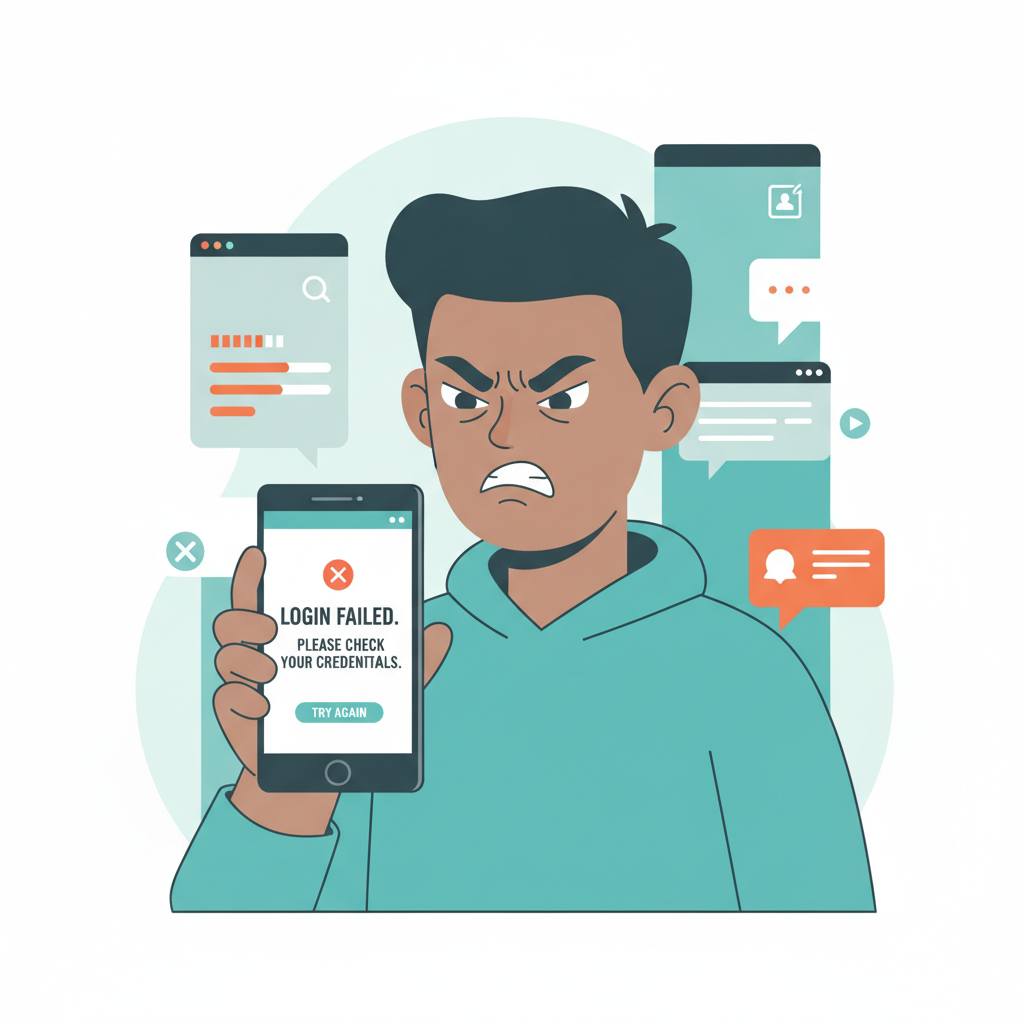
PV Winzone Login Problems: Can't Sign In or Forgot Password Fix
When you're ready to bet on PBA or spin slots but can't get past the PV Winzone login screen, the delay is frustrating. This guide walks through the most common sign-in errors Filipino players see on Android and mobile browsers, plus step-by-step fixes for password resets, account recovery, cache problems, and knowing when to contact support.
PV Winzone is an online casino and sportsbook serving players in the Philippines with slots, live dealer tables, sports betting, and bingo. This is an independent help guide written for existing players aged 21 and over who are troubleshooting login and access issues.
Common PV Winzone Login Errors
Most sign-in problems fall into a few categories. Recognizing the error message or behavior helps you pick the right fix.
Wrong Username or Password
The most frequent login error is "Invalid username or password" or "Incorrect credentials." This happens when:
- You mistyped your registered mobile number or email
- You're using an old password you changed previously
- Autocomplete filled the wrong saved password
- Caps Lock is on, making your password case-sensitive entry wrong
Quick fix: Double-check that you're entering the exact mobile number or email you used during PV Winzone registration. Passwords are case-sensitive, so verify capitalization. Try typing manually instead of relying on autofill.
Account Locked or Disabled
After several failed login attempts—usually three to five in a row—PV Winzone may temporarily lock your account for security. You'll see a message like "Account locked" or "Too many failed attempts."
Locks typically last 15 to 30 minutes. Some accounts get flagged for longer review if PV Winzone detects unusual activity or a terms-of-service violation.
Quick fix: Wait 30 minutes and try again. If the lock persists beyond an hour or you see "Account suspended," contact PV Winzone support directly (see below).
Connection Timeout or "Unable to Connect"
Network errors appear as "Connection timeout," "Unable to reach server," or a blank screen after you tap Log In. Common causes:
- Weak or unstable mobile data or Wi-Fi
- PV Winzone server maintenance (rare but possible)
- Your Internet Service Provider blocking the domain
- Outdated app version caching an old server address
Quick fix: Switch between Wi-Fi and mobile data to rule out your connection. Close and reopen the PV Winzone app or browser tab. Check PV Winzone's official Facebook page or Telegram group for maintenance announcements. If the site loads but login fails, the issue is likely account-specific rather than network-related.
Sign-In Loops (Login Button Does Nothing)
You enter credentials, tap Log In, and either nothing happens or the page reloads to the login screen without an error message. This usually points to:
- Corrupted browser cookies or app cache
- JavaScript disabled in your mobile browser
- An outdated APK version on Android
Quick fix: Clear cache and cookies (detailed steps below) or update to the latest PV Winzone app version. If you're using a browser, make sure JavaScript is enabled in settings.
How to Reset Your Password or Recover Your Account
If you genuinely forgot your password or suspect it was changed without your knowledge, PV Winzone provides a self-service reset flow.
Step-by-Step Password Reset
- Open the PV Winzone login page on your Android app or mobile browser.
- Tap "Forgot Password?" or "Reset Password" below the login fields.
- Enter your registered mobile number or email address. Use the same contact info you provided during sign-up.
- Tap "Send Reset Link" or "Send OTP." PV Winzone will send a one-time password via SMS or a reset link via email, depending on your registered details.
- Check your phone messages or email inbox. The OTP usually arrives within one to three minutes. Check your spam or junk folder if you don't see the email.
- Enter the OTP or click the reset link. You'll be redirected to a page where you can create a new password.
- Choose a strong new password. Combine upper- and lowercase letters, numbers, and symbols. Avoid reusing passwords from other sites.
- Confirm and save. Log in immediately with your new password to verify it works.
What if the reset link never arrives?
Wait five minutes, then request another OTP or link. Ensure your registered mobile number or email is still active. If you changed your SIM card or email provider, you may need to contact PV Winzone support to update your contact info before resetting.
Recovering a Locked or Inaccessible Account
If the password reset doesn't work—or you see "Account not found"—your account may have been deactivated or you're entering the wrong identifier.
- Double-check spelling and format: Mobile numbers should match the format you registered (with or without +63 country code).
- Try your email instead: If you initially signed up with a mobile number but later added an email, try resetting via email.
- Contact support if all else fails. Provide your full name, registered mobile or email, and any recent deposit or withdrawal transaction ID to verify your identity.
Clearing App Cache or Browser Cookies to Fix Sign-In Loops
Stored data sometimes conflicts with updated server sessions, causing login buttons to freeze or redirect endlessly. Clearing cache and cookies forces a fresh connection.
Android App Cache Clear
- Long-press the PV Winzone app icon on your home screen.
- Tap "App info" or the ⓘ icon.
- Select "Storage" or "Storage & cache."
- Tap "Clear cache" first. This removes temporary files without deleting your saved login.
- Try logging in again. If the problem persists, return to Storage and tap "Clear data" (this logs you out and resets the app to a fresh state).
- Reopen PV Winzone and log in manually.
Mobile Browser Cookies and Data
Chrome for Android:
- Open Chrome, tap the three dots (⋮) in the top-right corner.
- Go to Settings > Privacy and security > Clear browsing data.
- Select "Cookies and site data" and "Cached images and files."
- Choose "All time" for the time range.
- Tap "Clear data."
- Close Chrome completely, reopen, and visit the PV Winzone login page.
Safari on iOS (if PV Winzone offers an iOS web app):
- Go to iPhone Settings > Safari.
- Scroll down and tap "Clear History and Website Data."
- Confirm, then reopen Safari and navigate to PV Winzone.
After clearing, you'll need to re-enter your username and password. Autofill may be blank, so have your credentials ready.
When to Contact PV Winzone Support for Locked or Suspended Accounts
Some login issues require human review. Reach out to PV Winzone customer support if:
- Your account is locked for more than one hour after failed login attempts.
- You see "Account suspended" or "Contact support" instead of a password reset option.
- Password reset emails or OTPs never arrive, even after multiple requests and checking spam folders.
- You suspect unauthorized access—for example, you receive withdrawal confirmations you didn't initiate.
- Your registered mobile number or email is no longer accessible, and you cannot complete the reset flow.
How to Reach PV Winzone Support
PV Winzone typically offers:
- Live chat: Available inside the app or on the website footer. Fastest for urgent login locks.
- Email: Send a message detailing your issue, registered mobile or email, and recent transaction references.
- Telegram or Facebook Messenger: Some operators maintain official support channels on social platforms.
What to include in your message:
- Full name as registered
- Mobile number or email address on file
- Description of the error (screenshot if possible)
- Recent deposit or cashout transaction ID for identity verification
Response times vary. Live chat usually replies within minutes during peak evening hours; email may take a few hours to one business day.
Important: PV Winzone support will never ask for your password. If someone claiming to be support requests your password or asks you to send money to unlock your account, it's a scam.
Other Login Tips and Preventive Measures
- Save your password securely: Use a password manager app instead of browser autofill to avoid mistyped or outdated credentials.
- Enable two-factor authentication (2FA) if available: Extra security steps can prevent unauthorized sign-ins and reduce account locks.
- Keep your app updated: PV Winzone occasionally releases Android APK updates that fix bugs and improve login stability. Check the official website or support chat for the latest version.
- Use a stable connection: Switching networks mid-login can trigger timeouts. Stay on one Wi-Fi or mobile data session until you're fully signed in.
- Avoid VPNs unless required: Some VPN IP addresses are flagged for fraud, which may cause automatic account locks.
21+ Only and Responsible Gambling Reminder
PV Winzone is restricted to players aged 21 and older. Online betting should remain entertainment, not a source of income. If you find yourself logging in compulsively, chasing losses, or feeling anxious when you can't access your account, take a break. Set deposit limits through your GCash or Maya wallet, use PV Winzone's self-exclusion tools if available, or reach out to a responsible-gambling helpline in the Philippines. Gambling should be fun—if login problems feel like a relief rather than a frustration, consider whether it's time to pause.
Bottom line: Most PV Winzone login problems—wrong passwords, account locks, and sign-in loops—resolve quickly with a password reset, cache clear, or short wait. For persistent errors or suspected security issues, contact PV Winzone support with your account details and transaction history ready. Keeping your app updated and your credentials secure will help you avoid repeat login headaches.